Sorting and Display Options
planr offers various options to customize the view according to your needs. These can be accessed via two different icons in the upper right corner.
Display Options
You can adjust various display options using the eye icon:
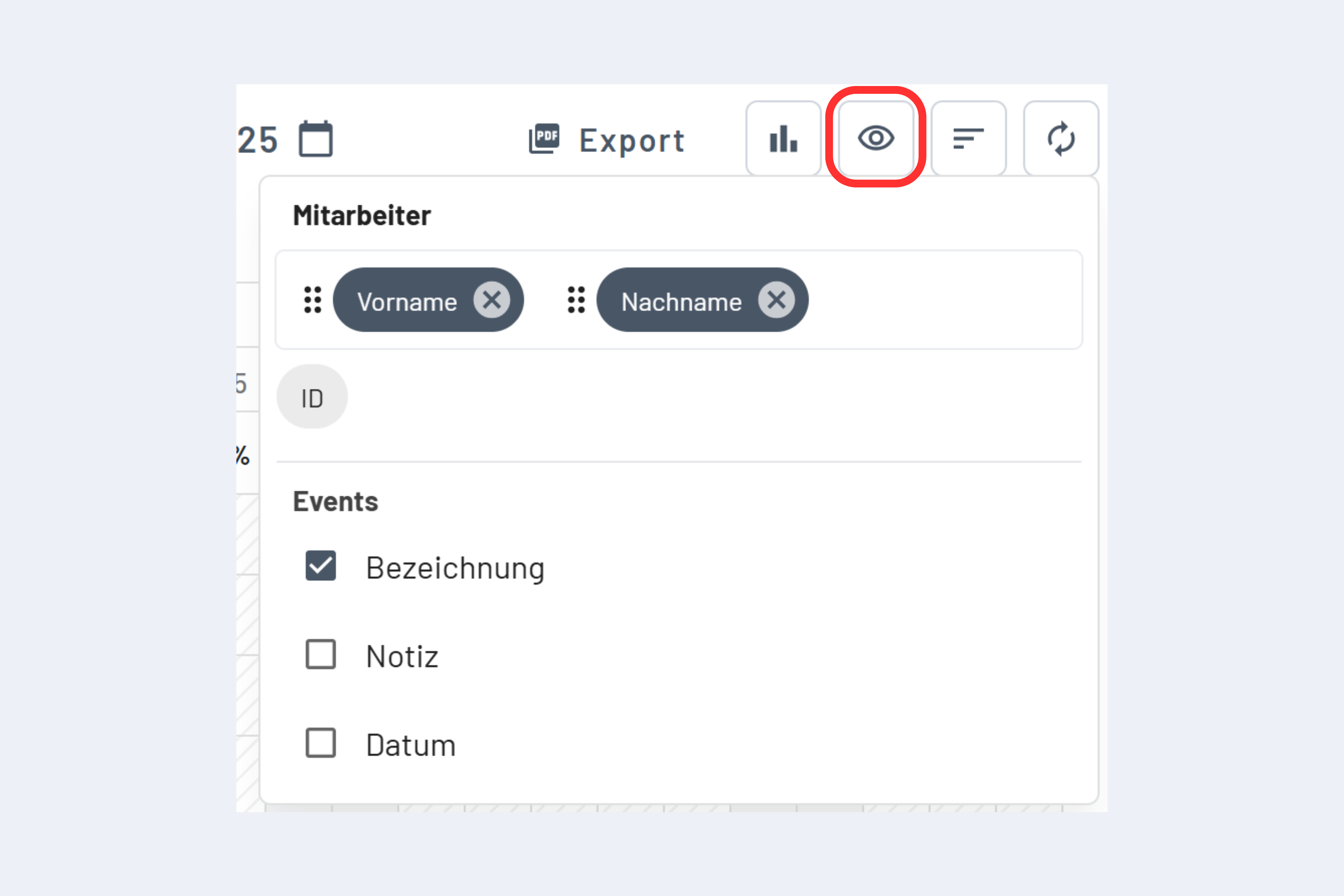
Customize First Column
You can individually customize the display of the first column:
- Change Order: For example, in the employee view, you can switch between "Last Name, First Name" and "First Name, Last Name".
- Show Additional Fields: You can display further information such as employee number or project number.
- Choose Display Format: Various display options for the information in the first column.
Events and Dispositions
As before, you can also customize the display for events and dispositions:
The display, or the level of information in the bars, can be individually adjusted:
- Label: Show/hide the label of events.
- Note: Show/hide notes for the entries.
- Date: Show/hide the date.
Sorting
The sorting of entries can be adjusted using the icon with three lines:
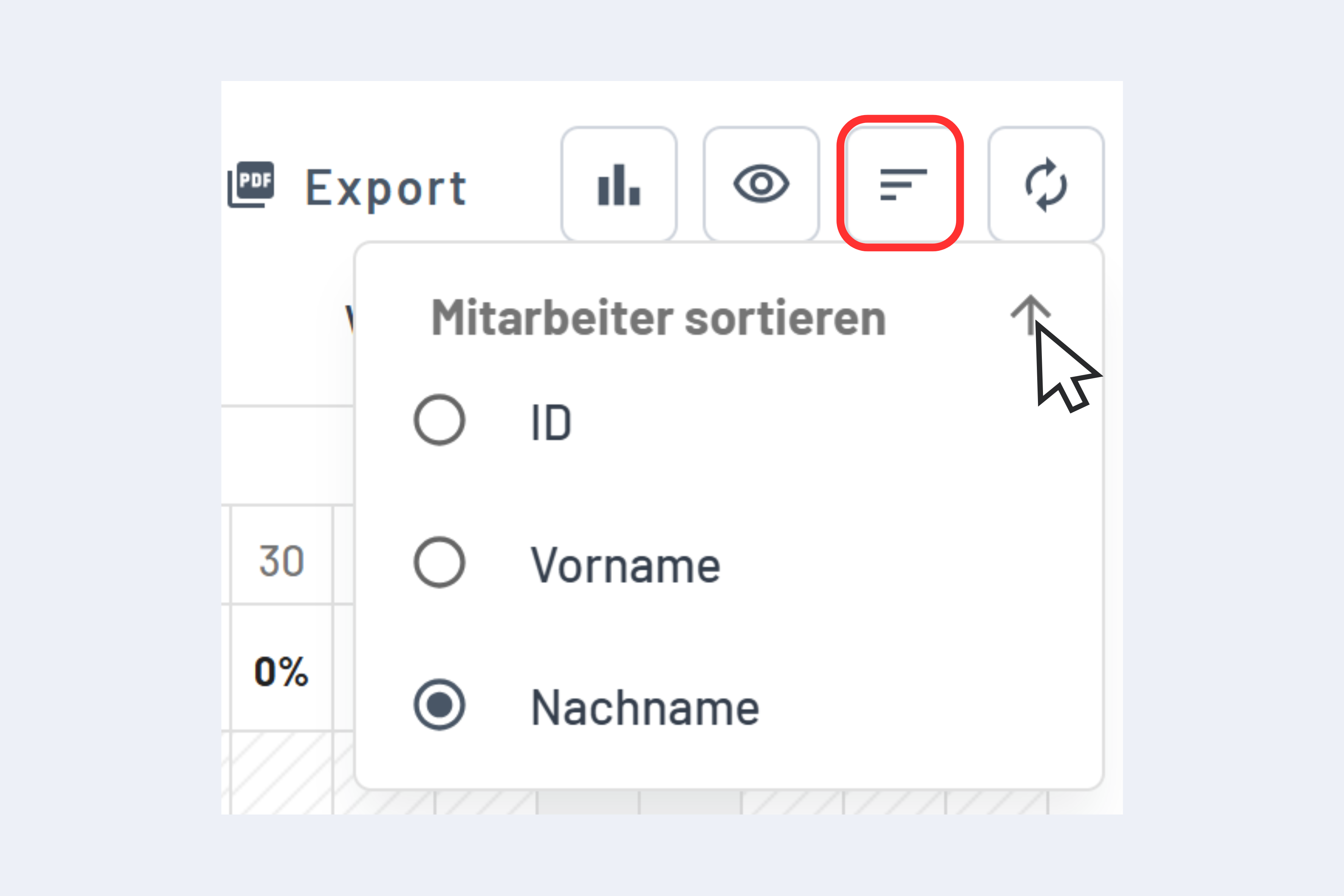
- Choose Sort Field: You can sort by different fields, e.g., by ID, First Name, or Last Name.
- Set Sort Order: Use the arrow next to "Sort Employees" to switch between ascending and descending order.
tip
Display options and sorting are saved per user and persist even after reloading the page.